Cash Advance
Learn how to request, approve, disburse, and liquidate cash advances in the Request for Payment Portal — from raising a request through to final settlement against receipts.
1Getting started
What a cash advance is
A cash advance is money released to an employee ahead of an expense — an event, a field activity, a purchase — that will later be accounted for with receipts. In the RFP Portal, every cash advance is tied to a specific employee in the directory, carries a readable ID like CA-00042, and is expected to be liquidated (settled with proof of spending) within the liquidation window.
The module is built around a simple promise: money out is always reconciled against money accounted for. Whatever is advanced must come back as receipts, as a returned balance recovered from salary, or as a reimbursement when the employee spent more than the advance.
The full lifecycle runs through the Cash Advance Portal: Request → Approval → Disbursement → Liquidation → Settlement. Each stage is tracked, so requesters and approvers always see the current status.
User raises the request and later liquidates it. Approvers review and sign. Finance releases payment and books the entry. HR handles any salary deduction or reimbursement at the end. You only ever see the screens for your own role.
The Cash Advance Portal is being rolled out by entity. If your entity is not yet live, continue to use your existing local process and check with your Finance team.
2Eligibility & limits
Cash advances are intended for legitimate, pre-approved business needs. Before raising a request, confirm the following with your Finance team or the applicable Finance policy:
- Who is eligible to request an advance and for which expense categories.
- Any maximum advance amount or approval threshold that applies to your role or entity.
- Whether an outstanding, unliquidated advance must be cleared before a new one can be raised.
Specific limits, eligible categories, and policy section references vary by entity and are confirmed by Finance. This guide describes the process, not the dollar thresholds.
3Requesting a cash advance
To raise a new request in the portal:
- Open the Cash Advance module. From the left navigation panel, select Request and click Cash Advance.
- Enter the purpose and period. Describe the business reason, the dates of the event, and what the funds are intended to be used for.
- Agree to the Authority to deduct.
- Attach supporting documents such as contracts, POs, cost estimates, etc.
- Submit for approval. The request is routed automatically to the relevant approver based on your reporting line and amount.
A clear cost breakdown speeds up approval — approvers can validate the amount without asking for more detail.
4Approval workflow
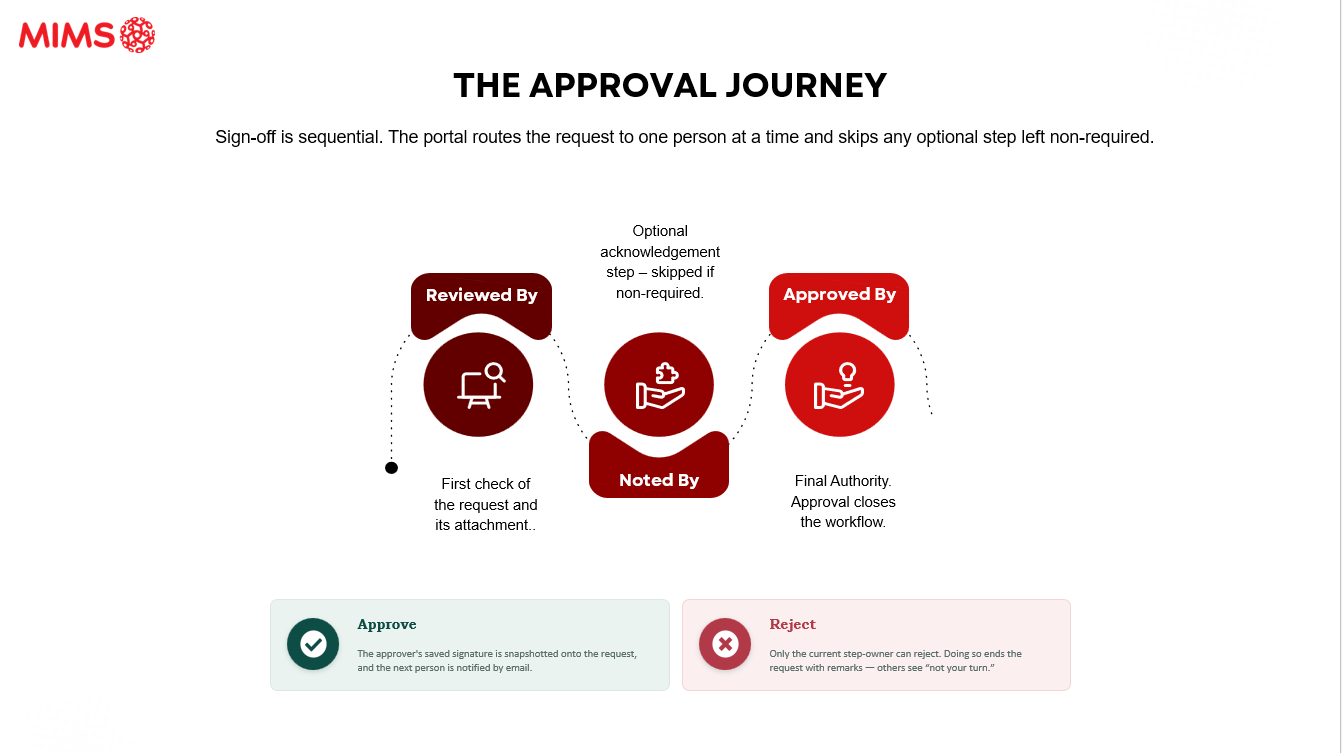
Once submitted, the request moves through the configured approval chain. Approvers can approve, reject, or return a request for changes.
- Approve — the request advances to disbursement.
- Return — the requester is asked to amend and resubmit; comments explain what is needed.
- Reject — the request is closed; a new one can be raised if circumstances change.
You can follow the live status of any request from the module list view at any time.
5Disbursement
After final approval, Finance processes the disbursement to the requester through the standard payment run for the entity. The portal records the disbursement date and reference so it can be matched during liquidation.
Disbursement timing follows your entity's payment schedule. Plan requests ahead of the date funds are needed.
6Liquidation & settlement
After the activity, liquidate the advance to account for how the funds were spent:
- Open the disbursed advance and select Liquidate.
- Record actual expenses against each line item and attach receipts.
- Settle the balance. If spend was lower than advanced, return the unused amount; if higher, request reimbursement for the excess.
- Submit for review, after which Finance validates and closes the advance.
Advances should be liquidated within the window set by Finance policy. Unliquidated advances may block new requests and appear on ageing reports.